How to Extract Audio from Video on iPhone
· Updated · 5 min read · By Furkan Kaya
Quick answer
On iPhone, the built-in way is the Shortcuts app: an Encode Media action with Audio Only turned on saves a video's soundtrack as an M4A file. If you need MP3, open the free MP4 to MP3 converter below in Safari, pick the video from your Photo Library and tap Convert to MP3. The audio is extracted in your browser; the video is not uploaded.
Or do it right here — this converter runs in Safari on your iPhone and never uploads the file:
Extracting audio from a video is one of those tasks that looks simple but has no obvious one-tap button in iOS. You might want the soundtrack from a video someone shared with you, a voiceover you recorded as a video clip, a lecture captured on your phone, or the background music from a clip before you delete the original. Whatever the reason, you need the audio track out — without re-recording the screen or uploading the video to an online service.
Upload-based audio extractors work, but they need the whole video first. That is slow on mobile data, eats your data allowance, and is a poor fit for personal or sensitive recordings. Both methods below run on your iPhone instead.
What does "extract audio from video" actually mean?
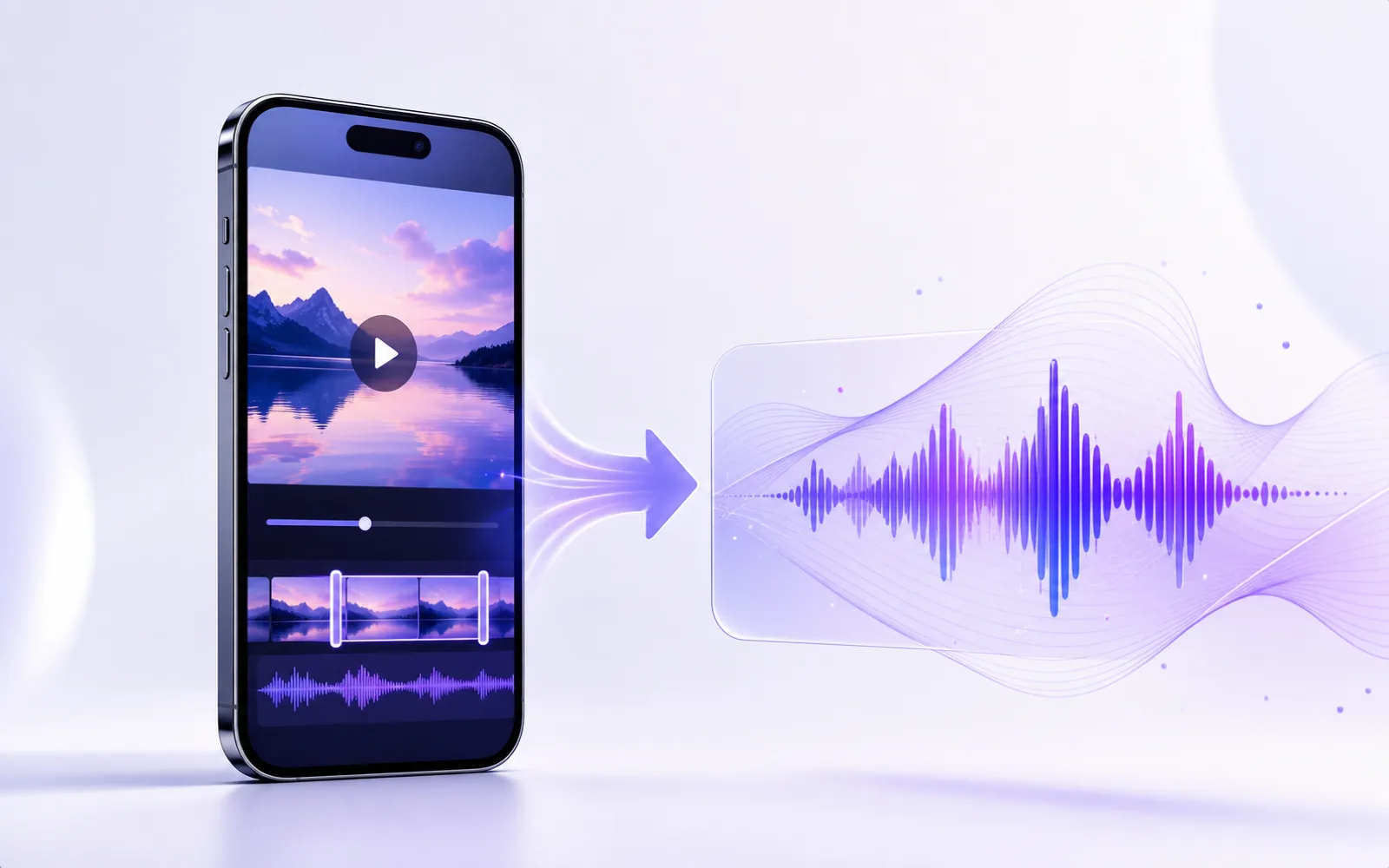
A video file contains at least two streams: the video track (frames) and the audio track. Extracting audio means saving only the audio stream to a standalone audio file. On iPhone that is usually an M4A file — Apple's native audio container, which plays directly in Files, Music and any iPhone audio player — or an MP3 if you need maximum compatibility.
This is different from converting the video to another video format — such as converting MOV to MP4 — which keeps the video track intact. Audio extraction removes the picture entirely and keeps only the sound, so the file is a fraction of the size.
Built-in option: the Shortcuts app (audio saved as M4A)
Apple's free Shortcuts app has an Encode Media action that can drop the picture and keep only the soundtrack:
- In Shortcuts, create a new shortcut with Encode Media, expand its options and turn on Audio Only.
- Follow it with Save File so you can choose where the audio goes.
- Turn on Show in Share Sheet, then share any video from Photos or Files to the shortcut.
The result is always an M4A (AAC) file. That's fine for playback on iPhone and Mac, but if you need an MP3 — for Android, Windows, a car stereo or an upload form — use the browser method below.
How to extract audio as MP3 on iPhone (step by step)
The free MP4 to MP3 converter runs in Safari. Your browser decodes the video's soundtrack and encodes an MP3 on the phone, so there is no upload, no account and no waiting for a remote server:
- Open the converter above (or fileconverterapp.com/mp4-to-mp3/) in Safari.
- Tap Choose files, then Photo Library or Browse, and select the MP4 or MOV video.
- Pick the quality — 128 kbps for speech, 192 kbps for music.
- Tap Convert to MP3 and download. The file is saved to Files → Downloads.
Once the audio file is in Files, you can share it via Messages, Mail, AirDrop, or any app that accepts audio. Very large videos (roughly 200 MB and up) can exceed what Safari can hold in memory — trim the clip in Photos first. Already have an M4A from Shortcuts? The M4A to MP3 converter turns it into an MP3.
Extract audio: Shortcuts vs. iMovie vs. browser converter
There are a few ways to get audio out of a video on iPhone. Here is how they compare in practice:
| Method | Output | Privacy | Best for |
|---|---|---|---|
| Shortcuts (Encode Media, Audio Only) | M4A | On your iPhone | Repeated use from the share sheet |
| Browser converter in Safari | MP3, 128–320 kbps | Processed in the browser, not uploaded | When you need an MP3, no install |
| iMovie "Detach Audio" | Exported as a video project | On your iPhone | Editors already working in iMovie |
| Upload-based online extractor | Varies | Full video uploaded to a server | Non-sensitive clips on fast Wi-Fi |
iMovie can detach an audio track, but it requires creating a project, importing the clip, detaching the audio, then exporting it — several steps for a simple job. Upload-based extractors look simple, but they send the entire video to a remote server, which can take minutes for a large clip and is not suitable for personal recordings.
What about the ConvertEase iPhone app?
To be straightforward: the ConvertEase app does not create MP3 files. On iOS it converts audio to M4A, WAV and AAC and converts video between MP4, MOV, MKV, AVI and 3GP on the device. It is free to download; saving results requires a Premium subscription. For pulling an MP3 out of a video, the web converter above is the right tool.
Tip: check the audio before deleting the original video
After extracting, tap the saved file in the Files app and press play to confirm the audio sounds correct before removing the original video. Some videos — especially clips recorded in unusual conditions or with very low volume — can have a near-silent audio track. If the extracted file sounds too quiet, keep the original video as a backup. And if large video files are still eating up storage space, compress your videos on iPhone to shrink them without losing the footage.
Extract MP3 audio from a video
Free · runs in Safari · the video is not uploaded
Open the MP4 to MP3 converterFrequently asked questions
Two free options: build a Shortcuts shortcut with Encode Media set to Audio Only, which saves the soundtrack as M4A; or open a browser converter such as ConvertEase's free MP4 to MP3 tool in Safari, pick the video and tap Convert to MP3. The browser tool works on the phone and does not upload the video.
The Shortcuts method always saves M4A (AAC), Apple's native audio format. The ConvertEase web converter saves MP3 at the bitrate you choose (128–320 kbps), which plays on Android, Windows, car stereos and upload forms that require MP3.
MOV and M4V work everywhere, including Safari on iPhone. MKV and WEBM depend on the browser: Chrome and Firefox usually read them, Safari often cannot. For those files, use a computer or convert the video to MP4 first.
Yes, if the extraction happens on your phone. Shortcuts and iMovie work on the device, and the ConvertEase web converter processes the video inside Safari without uploading it. Avoid upload-based online extractors for personal recordings.
No. On iOS the ConvertEase app converts audio to M4A, WAV and AAC and converts video between MP4, MOV, MKV, AVI and 3GP; it does not create MP3. For MP3, use the free web converter in Safari. The app is free to download; saving results requires a Premium subscription.