How to Split a PDF on iPhone
· Updated · 5 min read · By Furkan Kaya
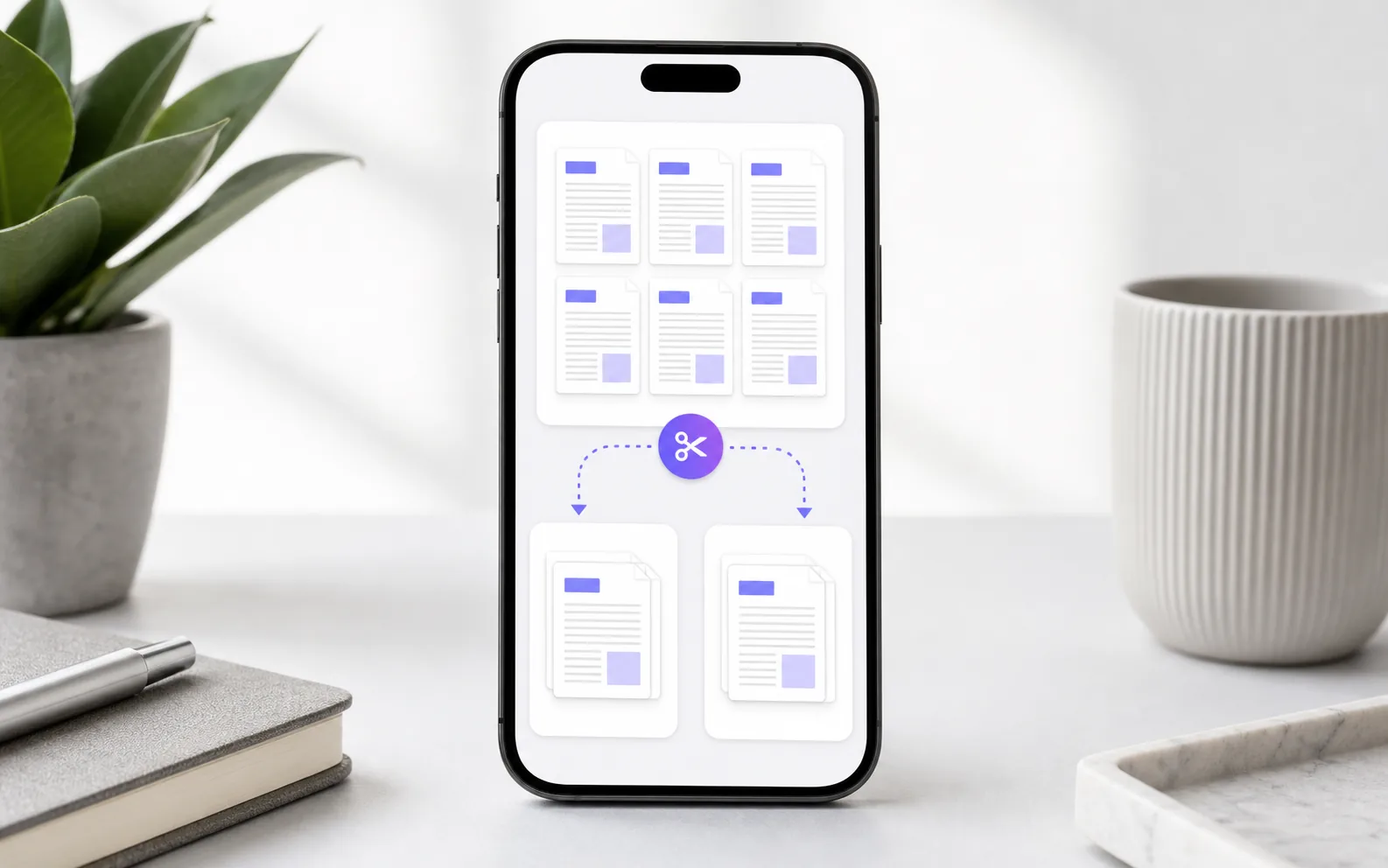
Quick answer
To split a PDF on iPhone without an app, open it in Files, tap Share → Print, set the page Range, then tap Share → Save to Files — the new PDF holds only those pages. To cut a PDF into several files or one PDF per page in one pass, use the free Split PDF tool below in Safari. Nothing is uploaded.
Or do it right here — this splitter runs in Safari on your iPhone and never uploads the file:
Splitting a PDF is useful when one document contains too much: a contract plus an ID page, a full bank statement when you only need one month, or a scan where only two pages should be sent. Instead of forwarding the whole file, you can extract just the pages you need and keep the rest private.
On iPhone, the safest workflow is to split the PDF locally. Upload-based PDF splitters work, but they need the whole document first. That is slow on mobile and a poor fit for paperwork that contains names, addresses, signatures, medical details or financial information.
What does splitting a PDF mean?
Splitting a PDF means creating a new PDF from selected pages of an existing one. You might extract page 3 only, split pages 1-4 from pages 5-9, or save every page as its own file. It is different from compressing a PDF, which shrinks the file size, and different from merging, which combines several PDFs into one.
The important part is page control. A good splitter lets you choose exact pages before saving, so you do not need to duplicate the full document or crop screenshots manually.
Free built-in method: extract pages with the Print trick
iOS has no "Split" button, but the Print screen can save any page range as a new PDF:
- Open the PDF in Files and tap Share → Print.
- Tap Range and choose the pages you want to keep (for example 3–5).
- Tap the Share button at the top of Print Options, then Save to Files. The new PDF contains only those pages.
Repeat for each part you need. That's fine for pulling out one section, but slow if you want to split a long document into many files or into single pages — a dedicated splitter does it in one pass.
How to split a PDF into several files (step by step)
The free Split PDF tool runs in Safari on your iPhone. Your browser copies the pages into new PDFs locally, so private documents are not uploaded.
- Open the splitter above (or fileconverterapp.com/split-pdf/) in Safari and tap Choose files → Browse to pick the PDF.
- Choose a Split mode: Extract pages, or Every page to its own PDF.
- For Extract pages, type the pages you want, for example 1-3, 5, 8-10.
- Tap Split PDF and download the results to Files → Downloads.
After splitting, open the new file in Files to check the pages before you send it. If you need the opposite workflow later, use the Merge PDF tool or read how to merge PDFs on iPhone. Need a page as an image instead? PDF to JPG saves pages as pictures.
Split PDF: built-in vs. browser tool vs. upload site
There are several ways to remove pages from a PDF, but they are not equal when you need exact control or privacy:
| Method | Page control | Privacy | Best for |
|---|---|---|---|
| Print → Save to Files (built-in) | One range per pass | Stays on device | Pulling out one section |
| ConvertEase Split PDF (browser) | Several ranges or every page, one pass | Split in Safari, not uploaded | Private documents, many parts |
| Upload-based PDF splitter | Usually flexible | Full PDF uploaded to a server | Non-sensitive files on a strong connection |
Upload-based splitters can be convenient, but they often add upload limits, sign-in prompts, ads or waiting time — and your document sits on someone else's server.
Does the ConvertEase app split PDFs?
No. The ConvertEase iPhone app converts documents between formats (for example PDF to Word, which is processed on ConvertEase's server), but it has no split or merge feature. For splitting, use the Print trick or the free web tool above.
Tip: duplicate before deleting pages
If you are experimenting with any built-in PDF editing workflow, duplicate the original file first in the Files app. Tap and hold the PDF, choose Duplicate, then edit the copy. That way you can safely remove pages or export a range without risking the original. If the finished file is still too large to email, compress the PDF after splitting.
Split PDFs in your browser
Free · runs in Safari · documents are not uploaded
Open the Split PDF toolFrequently asked questions
Open the PDF in Files, tap Share → Print, set the page Range, then tap Share → Save to Files to save just those pages. To split a PDF into several files or one PDF per page, open a browser-based splitter such as ConvertEase's free Split PDF tool in Safari; the PDF is split in your browser, not uploaded.
There is no Split button, but you can extract a page range with a built-in trick: open the PDF in Files, tap Share → Print, set the page Range, then tap Share → Save to Files. The new PDF contains only those pages. To split a document into many parts at once, a dedicated splitter is faster.
No. Splitting a PDF copies the selected pages into a new PDF without re-compressing the page content, so text, images and signatures keep their original quality. The new file is usually smaller because it contains fewer pages.
Yes, if the split happens on your phone. The built-in Print method and ConvertEase's browser-based Split PDF tool both keep the document on your iPhone, which is safer than upload-based splitters for contracts, IDs, medical paperwork or financial documents.
No. The ConvertEase app converts documents between formats such as PDF and Word, but it does not split or merge PDFs. Use the built-in Print method or the free Split PDF tool on the ConvertEase website, which works in Safari on iPhone.